There are three things a decision register has to do well. Capture the call with enough context that someone else can read it back later. Lock it down once the team commits, so the record stays as it was agreed. Review it on a deliberate cadence, so the outcome lands while the rationale is still readable. Decision Planner is built around those three jobs; the views, dashboards, templates, and customisation surfaces are downstream of them, not the point.
Capture in minutes, find for ever
A complete entry takes a few minutes to record and outlives every other artefact of the meeting.
Capture
Title, plain-English summary, the options you considered, the rationale, the decision-makers, the stakeholders, the category, the date you want to revisit it. Built-in templates give you a head start.
Sign off and lock
On Standard and Enterprise, one click signs the decision and locks it from edits once you are committed. A confirmation step makes sure the sign-off is deliberate. SharePoint version history keeps the full audit trail.
Revisit
When the revisit date comes around, capture the outcome (Successful, Mixed, Unsuccessful, Too early) and close the loop. The original rationale is right there to compare against.
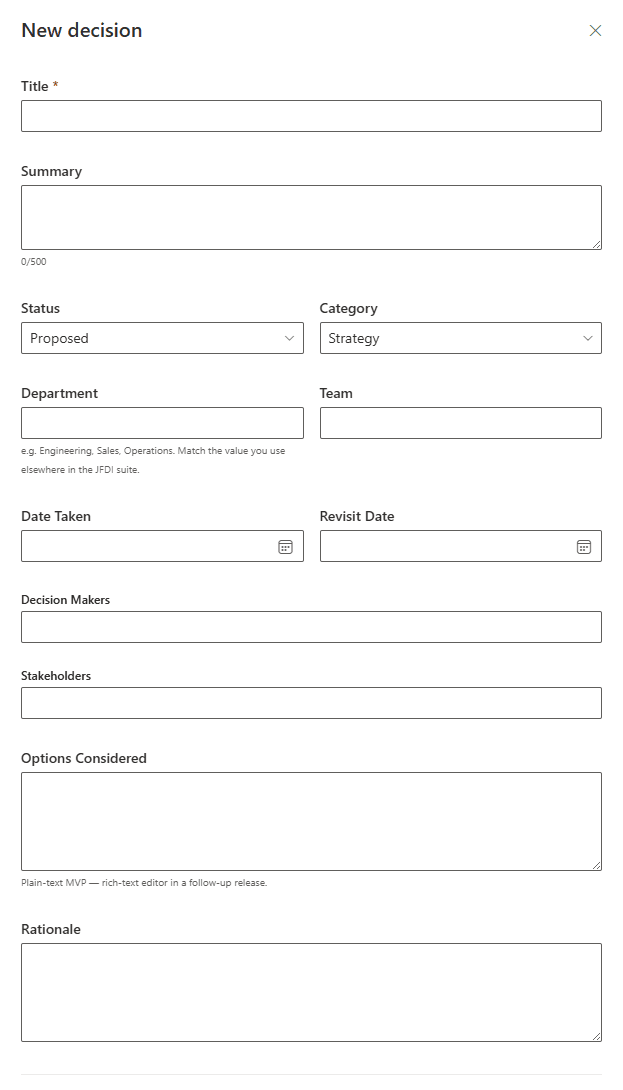
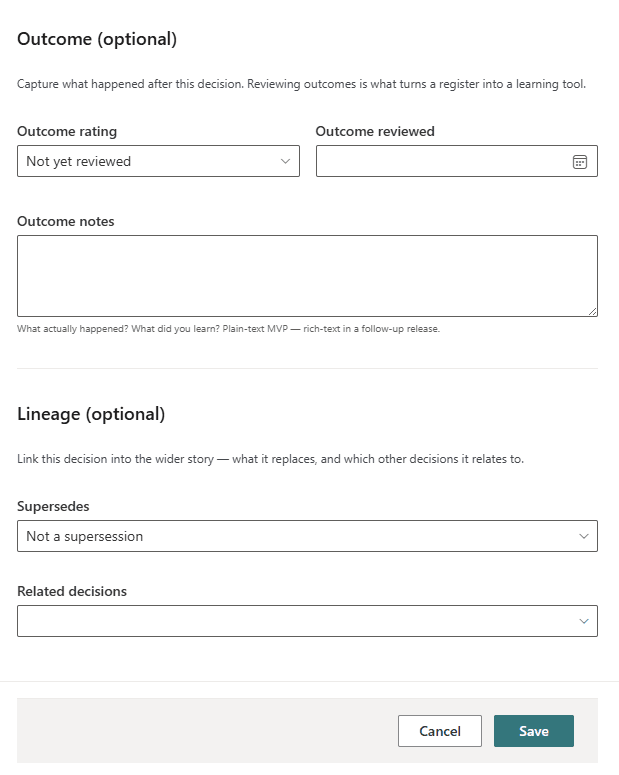
One form, two halves
The top half holds the structured metadata: title, summary (capped at 500 characters), status, category, department, team, the date taken, the revisit date, the people involved (Entra account pickers, not free text), the options considered, and the rationale. The bottom half holds the outcome rating, the date reviewed, outcome notes, and the lineage (what this decision supersedes and any related decisions). Top half gets filled at capture; bottom half at revisit.
Five ways to read the same register
The same decisions, looked at five different ways. Switching never costs you anything because the underlying data is the same SharePoint list. Every view sits above the same Revisit Radar and Quality Dashboard, so the context is consistent and only the bottom half of the page changes shape when you pivot. Click any image below to zoom into the detail.
List view
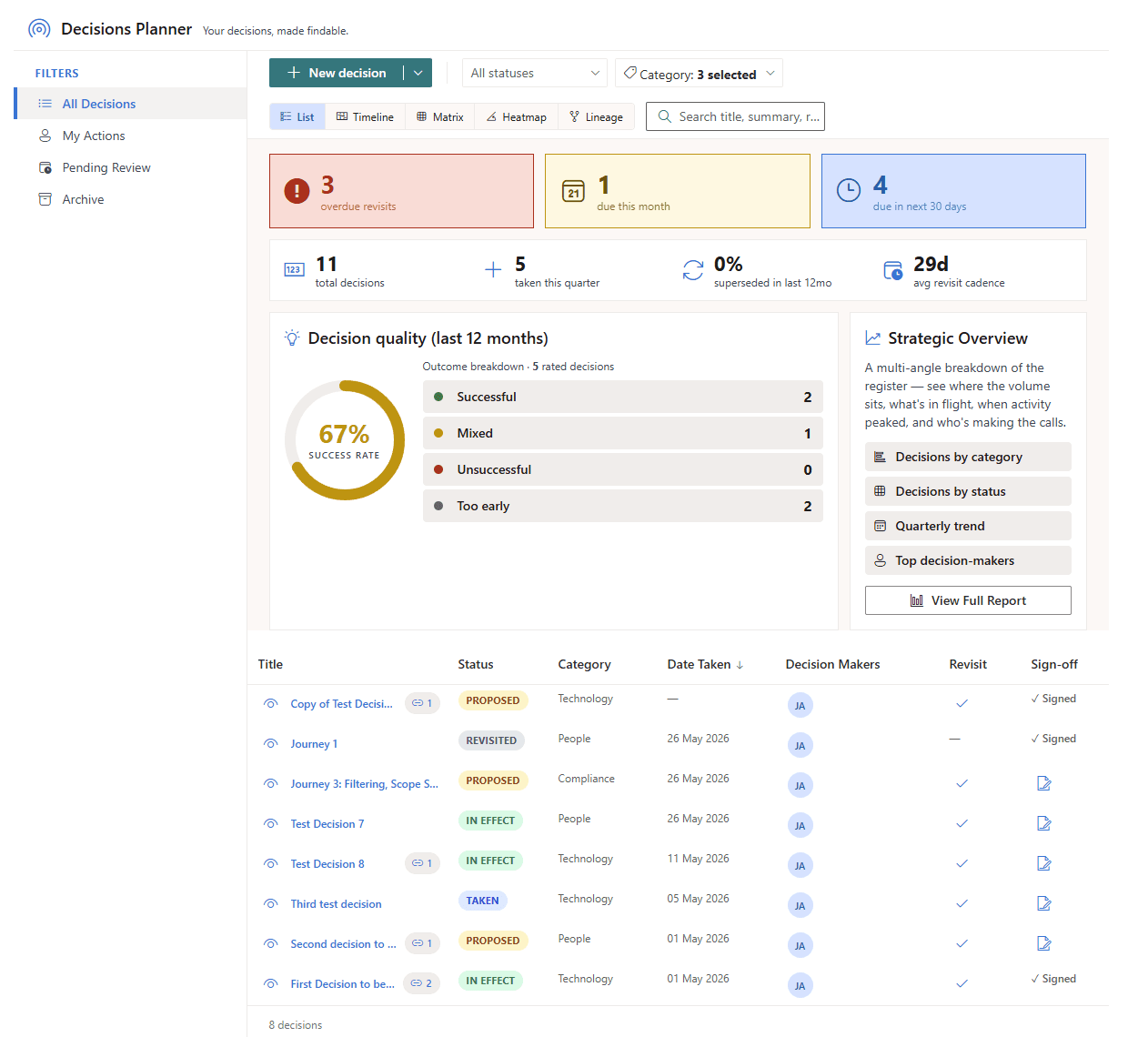
The searchable, sortable register. The day-to-day surface. Title, status pill, category, date taken, decision-makers, revisit indicator, sign-off state. Virtualised so a register of thousands of records stays responsive. The default view on every install.
Timeline view
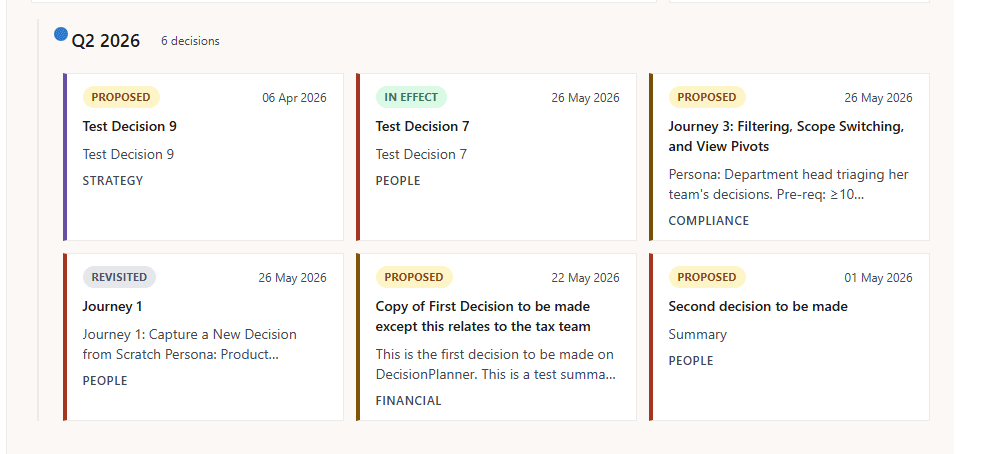
Quarterly bands across the year. See at a glance what was decided when, and where the activity clusters. Each decision card shows the status, the category, the title, the summary, and the date taken. Useful for post-quarter reviews and “what did we even do last quarter?” conversations.
Matrix view
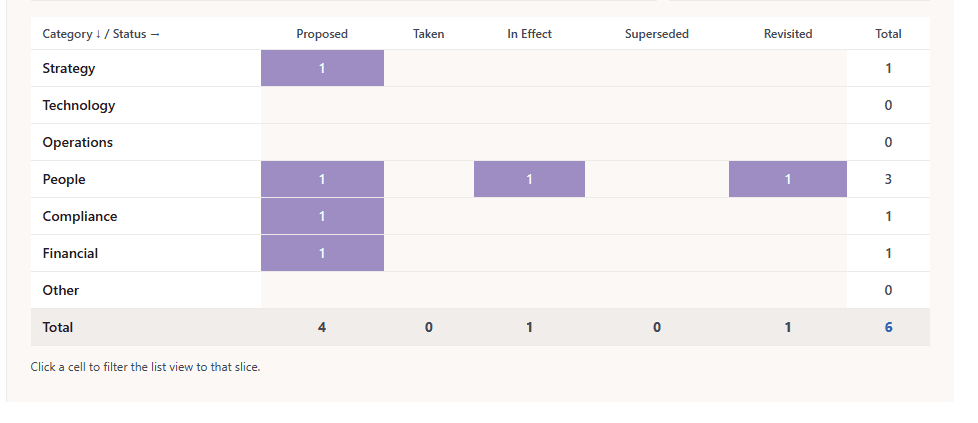
Category on one axis, status on the other. Spot where the activity (or the backlog) lives at a glance. The Proposed column tells you what’s in flight; the In Effect column shows what’s been delivered; clicking a cell pivots the list view to that exact slice.
Heatmap view
Quarter against category, shaded by volume. See where the team has been spending decision energy and where it has not. Useful for spotting category drought (you haven’t made a Compliance decision in two quarters: should you have?) or hotspots (every decision this quarter was Technology).

Lineage view
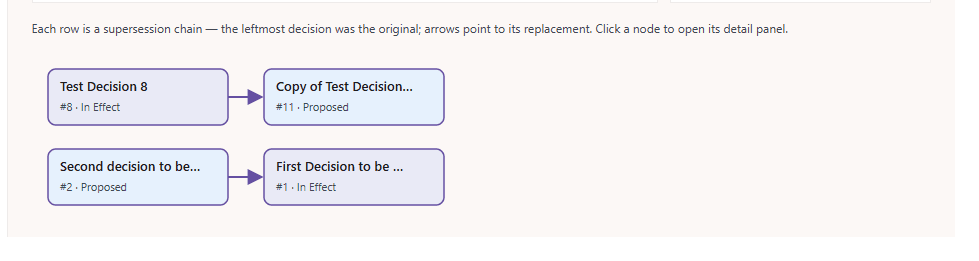
Supersession chains drawn as a graph. Follow how a decision evolved through revision and replacement. The leftmost node is the original; arrows point to its replacement. Click any node to open the detail panel. Essential when an external party asks “why did you change your mind in 2024?” and you need to show the chain, not just the latest entry.
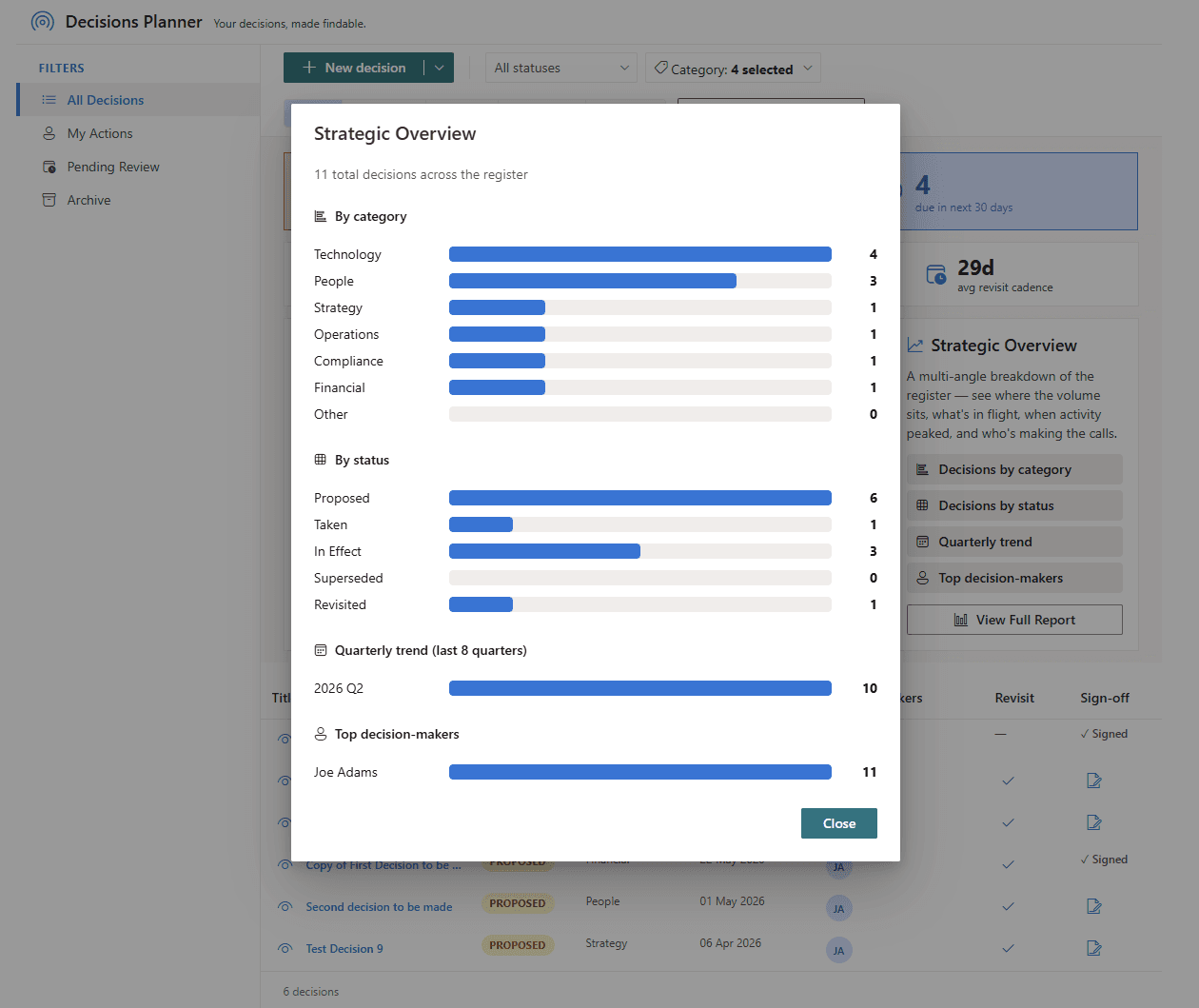
Strategic Overview report
A one-click multi-section breakdown of the register. By category, by status, quarterly trend across the last eight quarters, and the top decision-makers. The headline numbers you need for a board pack or a programme review, generated from your live register, without setting foot in Excel.
Accountability on the record
A decision register is only useful if the people responsible are tied to the decisions they made, and only credible if outcomes get recorded against the original rationale.
Insight, derived from outcomes you actually recorded
The Quality Dashboard is the headline metric. A success-rate gauge derived from outcomes captured at revisit (not from sentiment, not from “what we hoped”), broken down into Successful, Mixed, Unsuccessful, and Too early. The “Too early” bucket is deliberate: a decision pending its revisit window stays out of the success number until the team has actually formed a view.
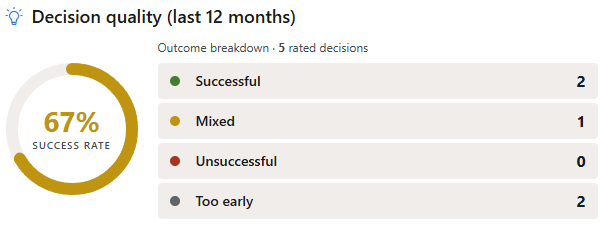
Quality Dashboard
A success-rate gauge derived from outcomes captured on revisit, not a vanity metric pulled from sentiment. Breaks down by outcome category.
Revisit Radar
Decisions overdue for review and due this month surfaced the moment you open the page. The nudge that closes the loop before context evaporates.
Pending Review queue
Your personal list of decisions waiting on you. Filter to the ones with revisit dates approaching.
Velocity strip
Decisions taken this quarter and the supersession rate. Spot when the team is churning or stalled.
Templates that suit different teams
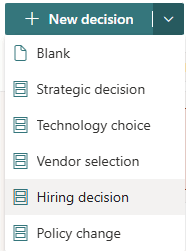
Click the New decision dropdown and pick a template. Each one seeds the rationale fields with prompts that match the kind of decision being captured. The dropdown is right where you make the decision; no menu spelunking, no separate “what template should I use” page.
| Template | What it captures well |
|---|---|
| Strategic decision | Long-horizon calls with named owners and a clear “we are committed” moment |
| Technology choice | Vendor or stack selection with options considered, costs, and trade-offs |
| Vendor selection | Procurement-style records with evaluation criteria and shortlists |
| Hiring decision | Panel calls with rationale, dissent, and outcomes after a review window |
| Policy change | Internal policy or process changes with the reason and the affected stakeholders |
| Blank | A clean form when none of the above fit |
Standard and Enterprise customers can add their own templates and category lists, without writing code, so a regulated team can adopt a register that matches their internal audit language on day one.
Lives where your team already works
SharePoint pages
Add the web part to any SharePoint page in your tenant. Sits alongside the rest of your page content; follows the page’s theme.
Microsoft Teams
Add it to a Teams channel as a tab so the people who need the register see it without leaving the conversation.
Outlook personal app
Pin it to Outlook as a personal app to capture decisions between meetings, without leaving your inbox.
Microsoft 365 home
Surface the register on the Microsoft 365 home pane so executives see their Pending Review queue the moment they log in.
Designed for governance from day one
Real teams have permission boundaries, retention rules, and audit requirements. Decision Planner reads and writes a normal SharePoint list, so all of that just works.
Compatibility and accessibility
Compatibility
Decision Planner is a SharePoint Framework (SPFx) web part for SharePoint Online, Microsoft Teams, Outlook, and the Microsoft 365 home. It runs in modern browsers (Edge, Chrome, Firefox, Safari) on desktop, tablet, and phone, follows your SharePoint site’s theme automatically, and adapts to different container widths. Designed mobile-first.
Accessibility
Built to WCAG 2.1 AA standards. Keyboard navigation across every interactive element, ARIA labels and semantic markup for assistive technology, accessible status messages via live regions, and visible focus indicators on every focusable surface.
The features we won’t build
A decision register works because it is the boring, reliable record everyone goes back to. Add too much and it stops being that. The list below is the running record of asks we have turned down, with the reason in each case. Some of these stay closed permanently; one or two might open if the product moves into territory we haven’t tested yet.
No workflow approval engine
If a decision needs to route to a specific approver before sign-off, that is Power Automate’s territory. Decision Planner exposes status changes as events your flows can react to. Sign-off itself stays in the hands of the named decision-maker.
No real-time collaborative editing
A SharePoint web part has no SignalR layer. Building real-time would require infrastructure outside your tenant. Edits are saved as they happen; conflict detection catches collisions when two people edit the same record.
No external integrations beyond M365 + JFDI suite
Customers asked for Jira, Confluence, ServiceNow, and Salesforce links. We are deliberately keeping the surface to Microsoft 365 + JFDI products at first, because that is where the data already lives and the permission story is coherent.
No private decisions hidden from the audit log
Every decision is in the list; visibility is controlled by SharePoint permissions on that list. We will not ship a private-mode that bypasses the audit trail, because the whole product depends on the audit trail being trustworthy.
No client-side export of the register
SharePoint lists already export to Excel natively, and that export is more trustworthy than anything we could generate client-side from a filtered view.
A register earns its keep by being trustworthy across years, not by being feature-rich in any given quarter. The boundary above is part of how we keep that trust.
Licensing tiers
Decision Planner is available in three tiers. All tiers include capture and the List, Timeline, and Matrix views; higher tiers add sign-off and lock, the revisit cycle, comments, dashboards, more views, and customisation.
| Feature | Free | Standard | Enterprise |
|---|---|---|---|
| Capture (title, summary, rationale, options) | ● | ● | ● |
| Decision-makers and stakeholders | ● | ● | ● |
| Categories, status, dates, ratings | ● | ● | ● |
| Built-in templates | ● | ● | ● |
| List view | ● | ● | ● |
| Timeline view | ● | ● | ● |
| Matrix view | ● | ● | ● |
| Filter by status and category | ● | ● | ● |
| Default view | ● | ● | ● |
| Show/hide individual views and tabs | ● | ● | ● |
| SharePoint pages | ● | ● | ● |
| Community support | ● | ● | ● |
| Sign-off and lock | ● | ● | |
| Revisit cycle + Pending Review | ● | ● | |
| Mark-as-revisited + outcome capture | ● | ● | |
| Outcome ratings into success metric | ● | ● | |
| Revisit Radar nudges | ● | ● | |
| Search across all decision fields | ● | ● | |
| Quality Dashboard | ● | ● | |
| Velocity strip | ● | ● | |
| Comments and @-mentions | ● | ● | |
| Custom categories (admin-defined) | ● | ● | |
| Custom templates (admin-defined) | ● | ● | |
| Microsoft Teams tab | ● | ● | |
| Outlook personal app | ● | ● | |
| Microsoft 365 home | ● | ● | |
| Standard support (business hours) | ● | ● | |
| Heatmap view | ● | ||
| Lineage view (supersession graph) | ● | ||
| Print to PDF | ● | ||
| Strategic Overview report | ● | ||
| Cross-site list selection | ● | ||
| Custom web-part title and tagline | ● | ||
| Priority support | ● |
Free is enough to capture decisions on a SharePoint page and read them in the List, Timeline, and Matrix views.
Standard adds sign-off and lock, the revisit cycle with mark as revisited, search, the Quality Dashboard, comments and @-mentions, admin-defined categories and templates, and Teams / Outlook / M365 home surfaces. Email and Teams chat notifications for mentions need their Microsoft Graph permissions approved by an administrator.
Enterprise adds Heatmap, Lineage, print to PDF, the Strategic Overview report, cross-site list selection, and a custom web-part title and tagline.
Each tier’s features are gated against the licence assigned to each user. Every install includes a 30-day Enterprise trial, which starts once an administrator approves the JFDI Licensing permission in the SharePoint admin centre.
Ready to keep a clear record of your decisions?
Decision Planner is available free on the Microsoft Marketplace, with a 30-day Enterprise licence that starts once an administrator approves the JFDI Licensing permission, so you can try every feature.